
- Features
- Resources
- Pricing
- Try Trainn's AI Video Agent


Product
Usecases
Resources
Case Studies
Company
- Customers
- Pricing
- Try Trainn's AI Video Agent
- Expert voices
- Log in
- Book a demo
- Sign up →
Published on: 09 Jun , 2026
How to Automatically Create Step-by-Step Guides from Screen Recordings
On this page
You can automatically create a step-by-step guide from a screen recording: record your workflow once, and an auto-generation tool captures each click as a screenshot, writes a description for every step, and formats the numbered output for you. No more manual screenshotting or annotation.
The reason this matters: doing it by hand is the painful part. Recording a workflow takes five minutes; what follows is taking screenshots one at a time, writing each step, formatting and numbering, uploading images in order. That manual work is why teams stop updating guides when the product changes, and why guide libraries go stale within months.
But "automatically" covers very different technical approaches, and the approach determines whether you get a polished, publish-ready guide or a rough draft that still needs an hour of editing. This article explains the two auto-generation methods, and how to create your first guide in Trainn.
How Automatically Creating Step-by-Step Guides from Screen Recordings Works
There are two distinct technical approaches to auto-generating step-by-step guides from screen recordings. The method determines the quality of the screenshots a customer will see.
| Approach | How it captures steps | Screenshot quality | Best for |
|---|---|---|---|
| Action-triggered capture | Browser extension detects each click, input, and page change; captures a full-resolution screenshot at that exact moment | Highest quality: clean, post-action UI state, no compression artefacts | Teams producing customer-facing guides where screenshot clarity and accuracy matter |
| Video frame extraction | Records continuous video, then extracts frames at inferred step endpoints | Lower quality: frames carry video compression and often catch mid-action UI states | Converting existing recordings when lower quality is acceptable |
The most effective approach for customer-facing guides is action-triggered capture.
Here is what happens under the hood: when you start recording, the browser extension injects an event listener into the active tab. As you click, type, select from a dropdown, or navigate to a new page, the extension detects each interaction and captures a screenshot of the post-action UI state: the clean endpoint of that action, not the transitional frame mid-click. Alongside the screenshot, the AI identifies the clicked element, reads its label and surrounding page context, and writes a step description automatically: "Click Save in the Account Settings panel" rather than a placeholder you have to fill in.
The guide builds step by step in real time. By the time you stop recording, it is ready to review: numbered, annotated, and formatted, with no post-processing queue to wait for.
In Trainn, you can create step-by-step guides in two ways:
| Method | How it works | Best for |
|---|---|---|
| Screen recording | Use the Trainn browser extension to record your workflow; the AI captures every click and interaction and builds the guide automatically | New guides from product workflows: the fastest path to a clean, accurate guide |
| Screenshot upload | Upload existing product screenshots directly into Trainn and build the guide from those images | Teams who already have product screenshots and want to structure them into a guide without re-recording |
Both methods produce the same output: a formatted, annotated step-by-step guide with AI-generated descriptions per step, ready to publish to your knowledge base or embed in-app.
What to Look For in a Step-by-Step Guide Creation Tool
-
Capture method
Not all "automatic" tools capture the same way — action-triggered tools screenshot each click at full resolution, producing cleaner guides than tools that extract frames from a video after recording. -
Update model
Choose a tool that lets you re-capture individual steps, not one that forces a full re-record every time the product changes — otherwise your guide library will fall behind fast. -
Delivery. A good guide tool should go beyond shareable links — it should also offer a searchable knowledge base and in-app tutorial so the right guide surfaces inside the product, exactly where the customer needs it.
-
Analytics.
Look for per-step drop-off data rather than just total view counts, so you know exactly which step customers abandon and what to fix. -
Multilingual support.
If you serve non-English speakers, confirm the tool supports multilingual guides before building a large library in one that has no translation path.
Comparing tools? see our breakdown → 9 Best Step-by-Step Guide Creation Tools for SaaS Products in 2026
Getting Started with Trainn: How to Create a Step-by-Step Guide from a Screen Recording
Here is the end-to-end workflow for creating a step-by-step guide automatically in Trainn, from recording to published guide.
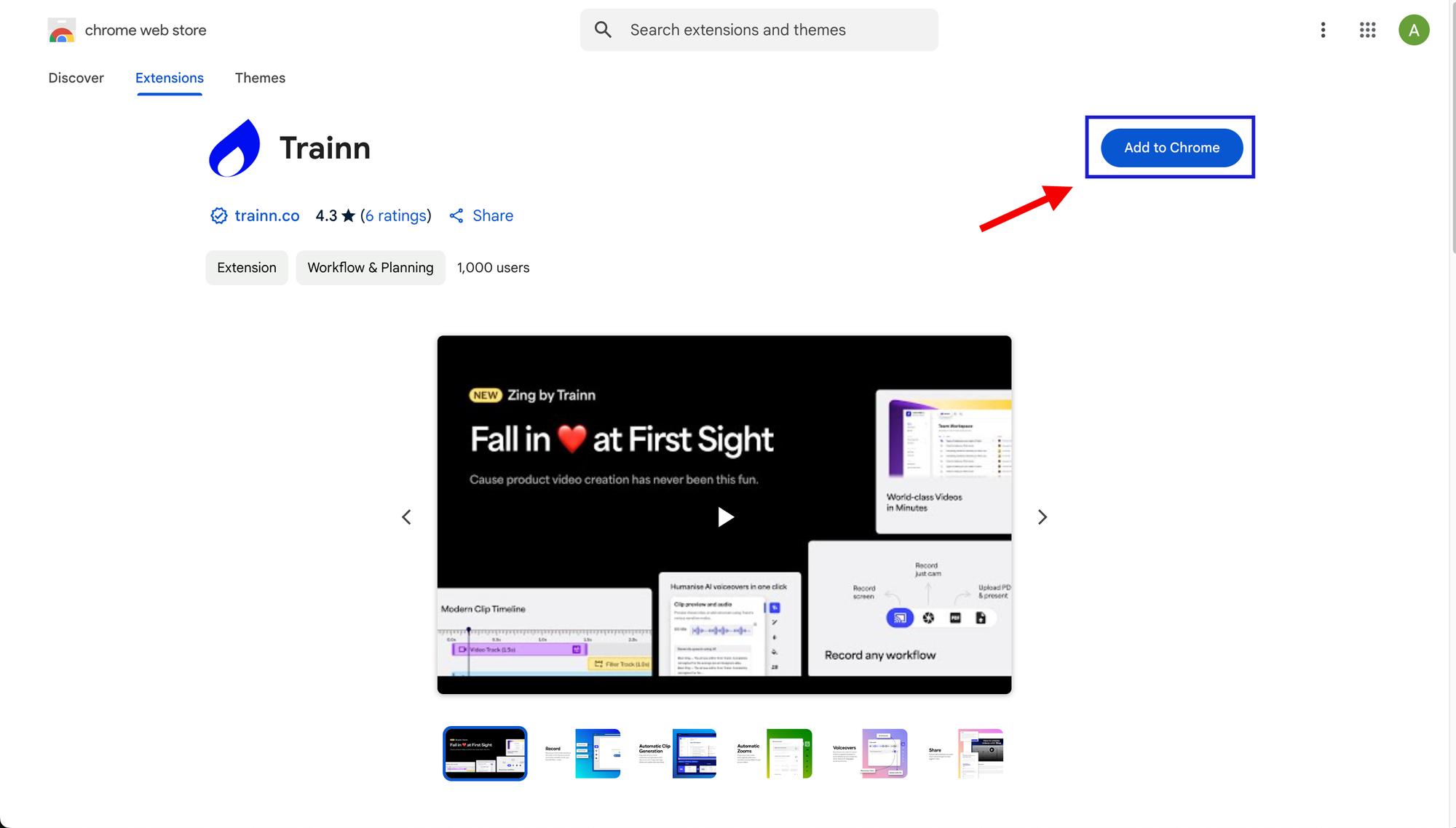
Step 1: Install the Trainn Chrome extension.
Go through this [link] and download the Trainn Chrome extension. The chrome extension is a must-have to record guides in Trainn.
Step 2: Open Trainn and your product workflow
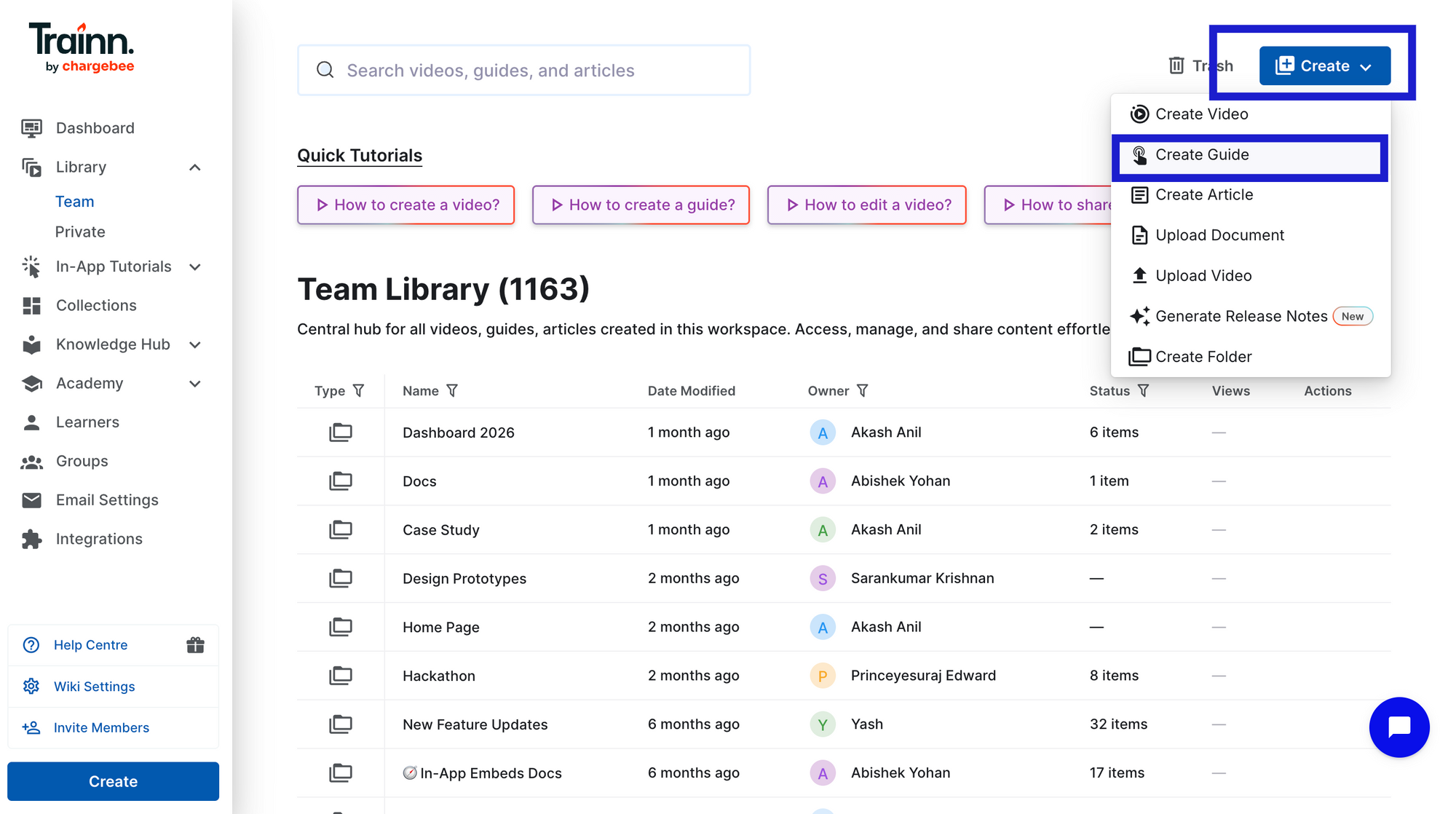
Go to the Library page. Click 'Create' and select 'Create Guide'.
Step 3: Click Record and perform the workflow naturally
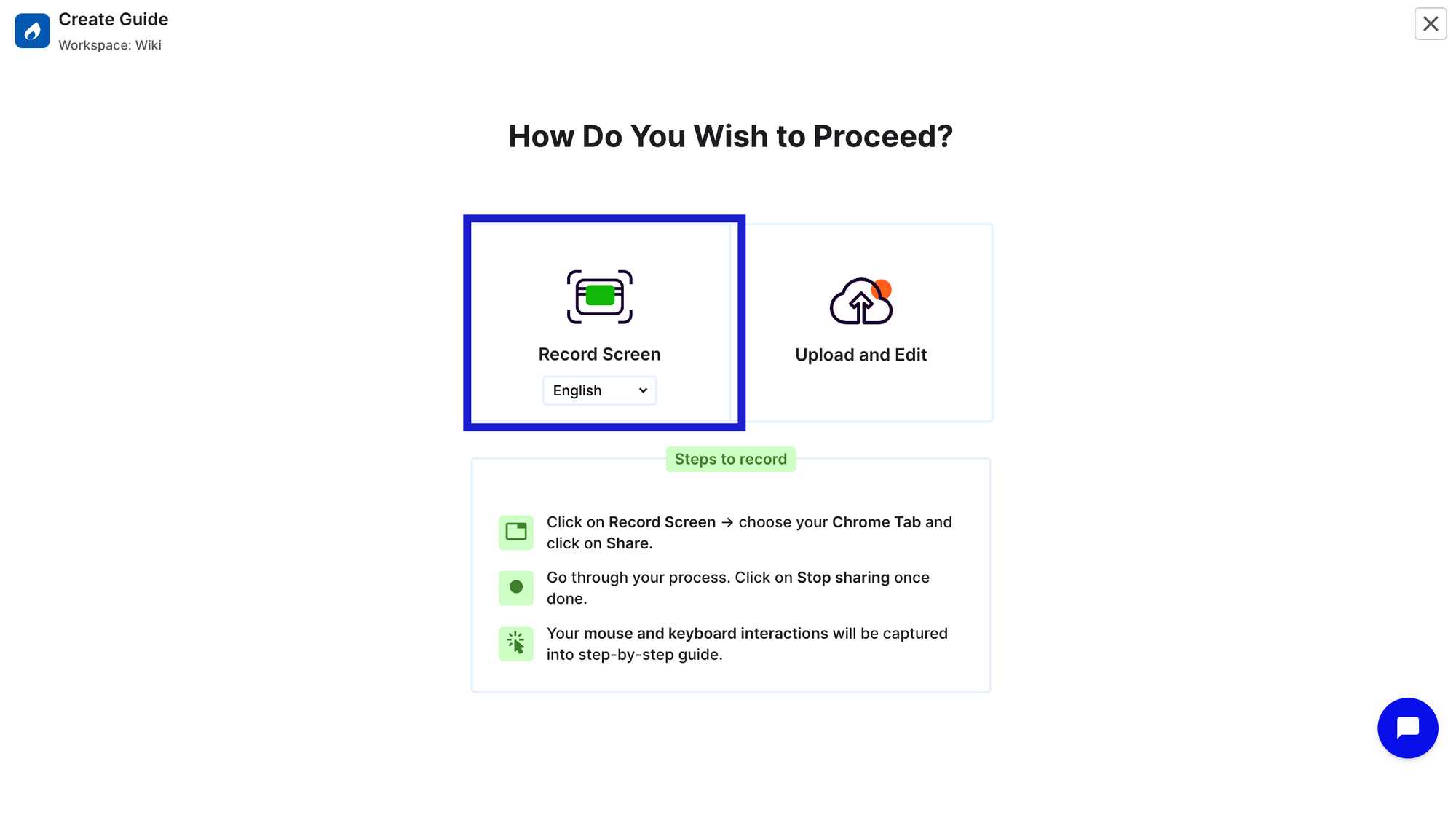
Click ‘Record’. Select the tab which you wanted to record and proceed with 'Share' to start recording. Just perform the workflow the way you would normally show it to a customer.
Step 4: Stop recording and step-by-step guide is generated
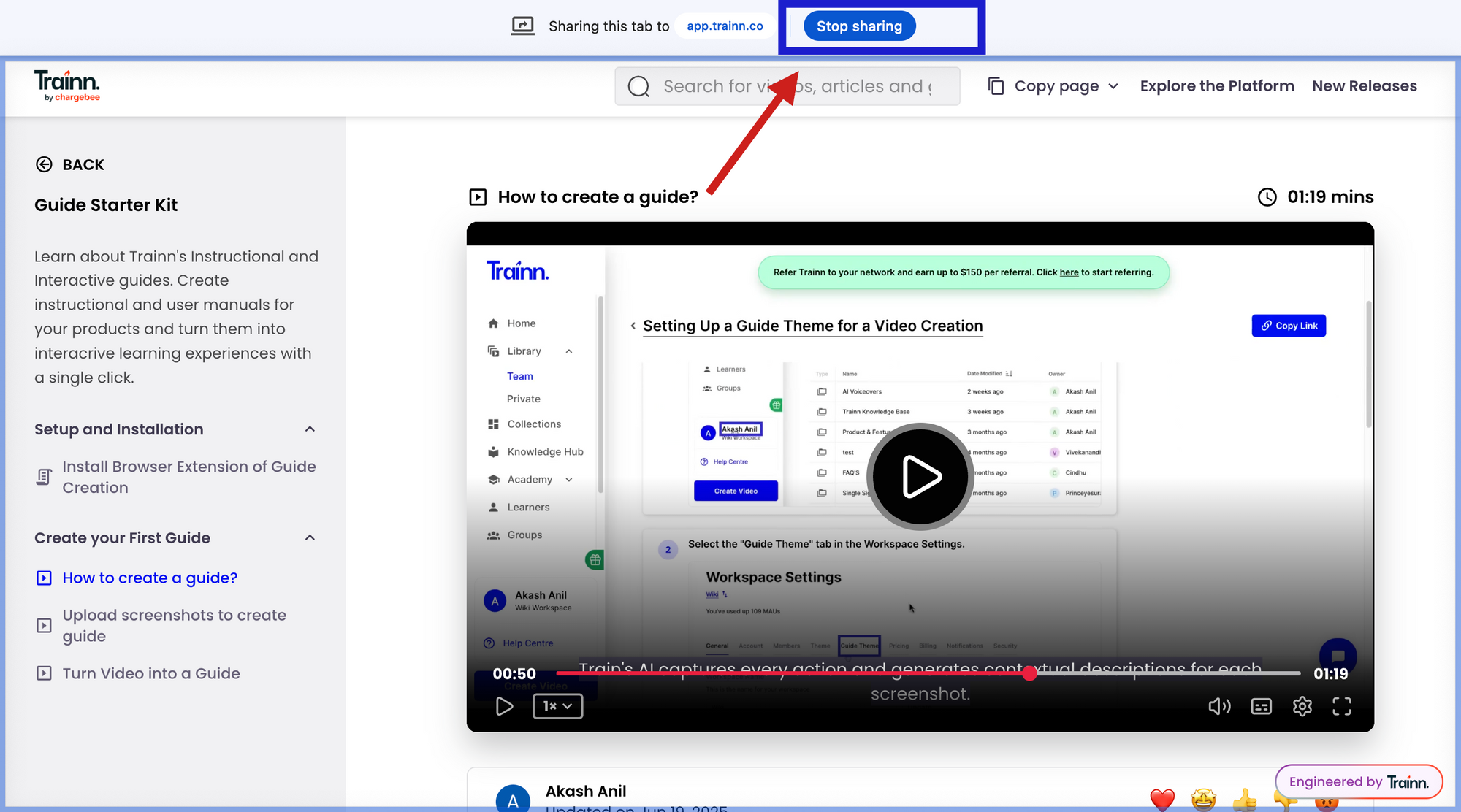
Once workflow is completed, click 'Stop sharing' from the same tab. Trainn automatically captures every action, and generates screenshots with zooms and spotlights to highlight actions and contextual step description.
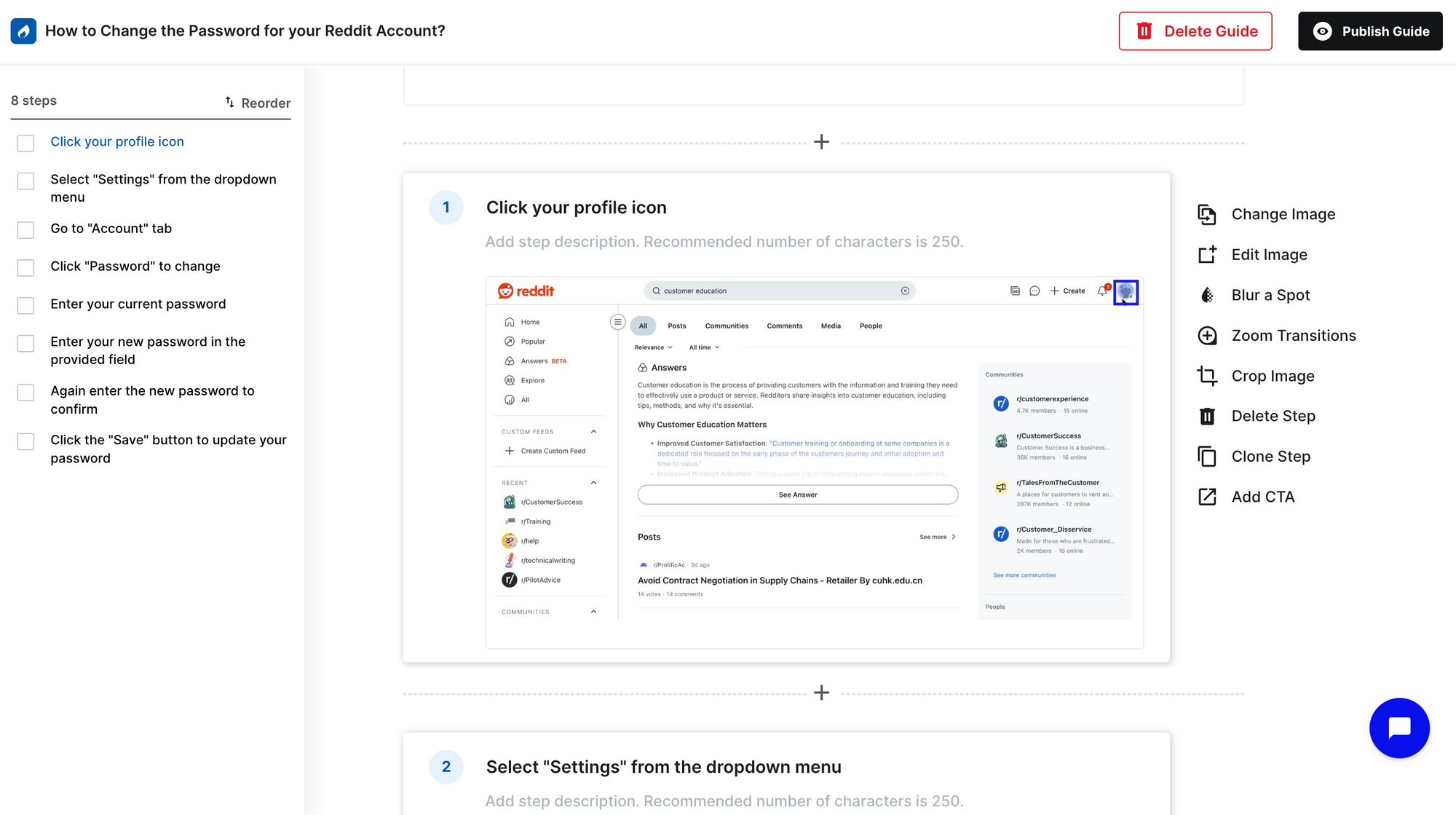
Step 5: Review and edit as per your requirements
Review each step. Editing happens at the individual step level. Swap any screenshot that needs updating, adjust zooms or spotlights, edit description, blur any sensitive data, and reorder steps if needed.
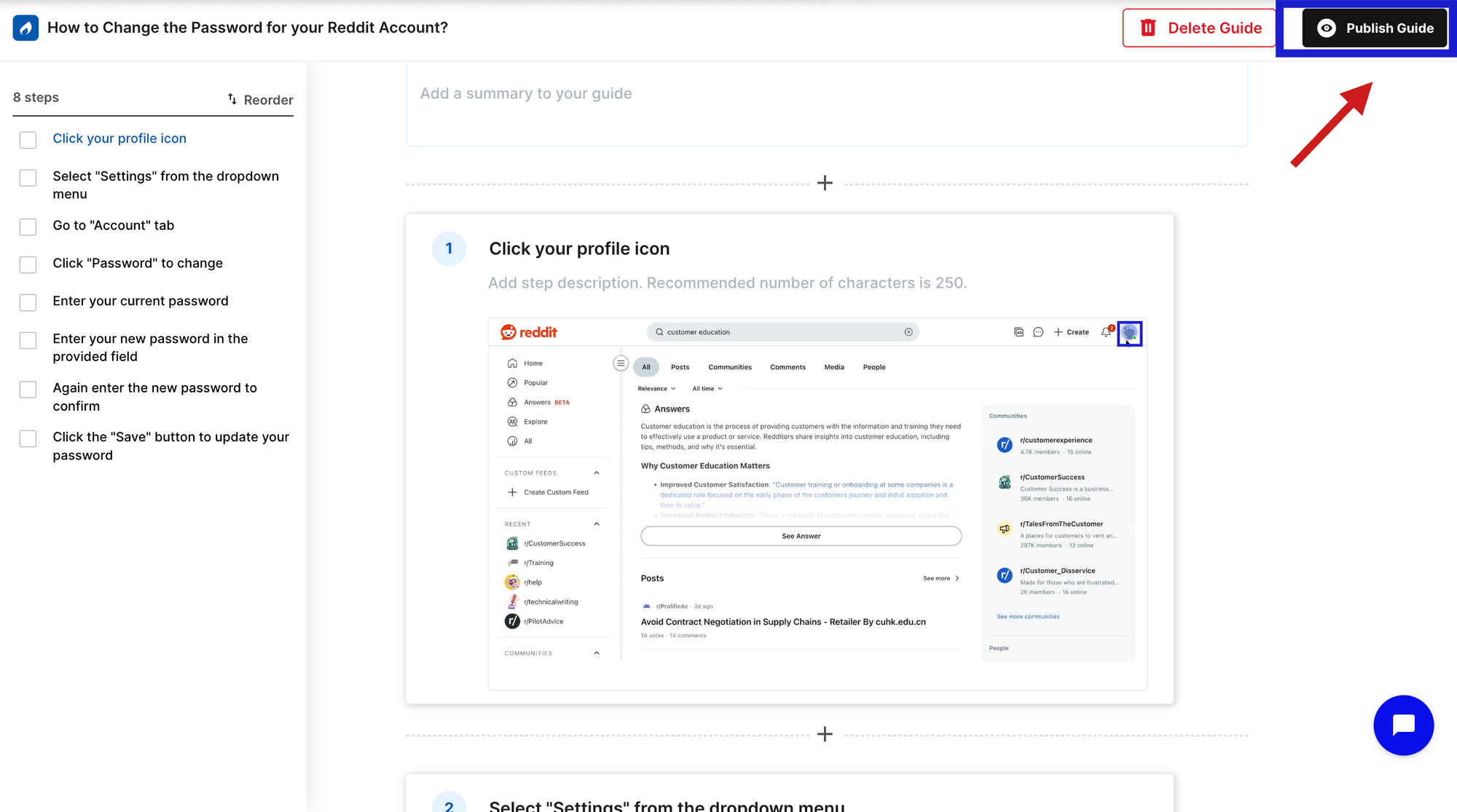
Step 6: Publish and share
Once reviewed, your step-by-step guide is ready to publish. Click ‘Publish.
Step 8: Convert existing video from Trainn into step-by-step guide
Go to any of the existing Trainn videos and click ‘Convert to Guide’. Trainn automatically converts your video into guides. ![][image7]
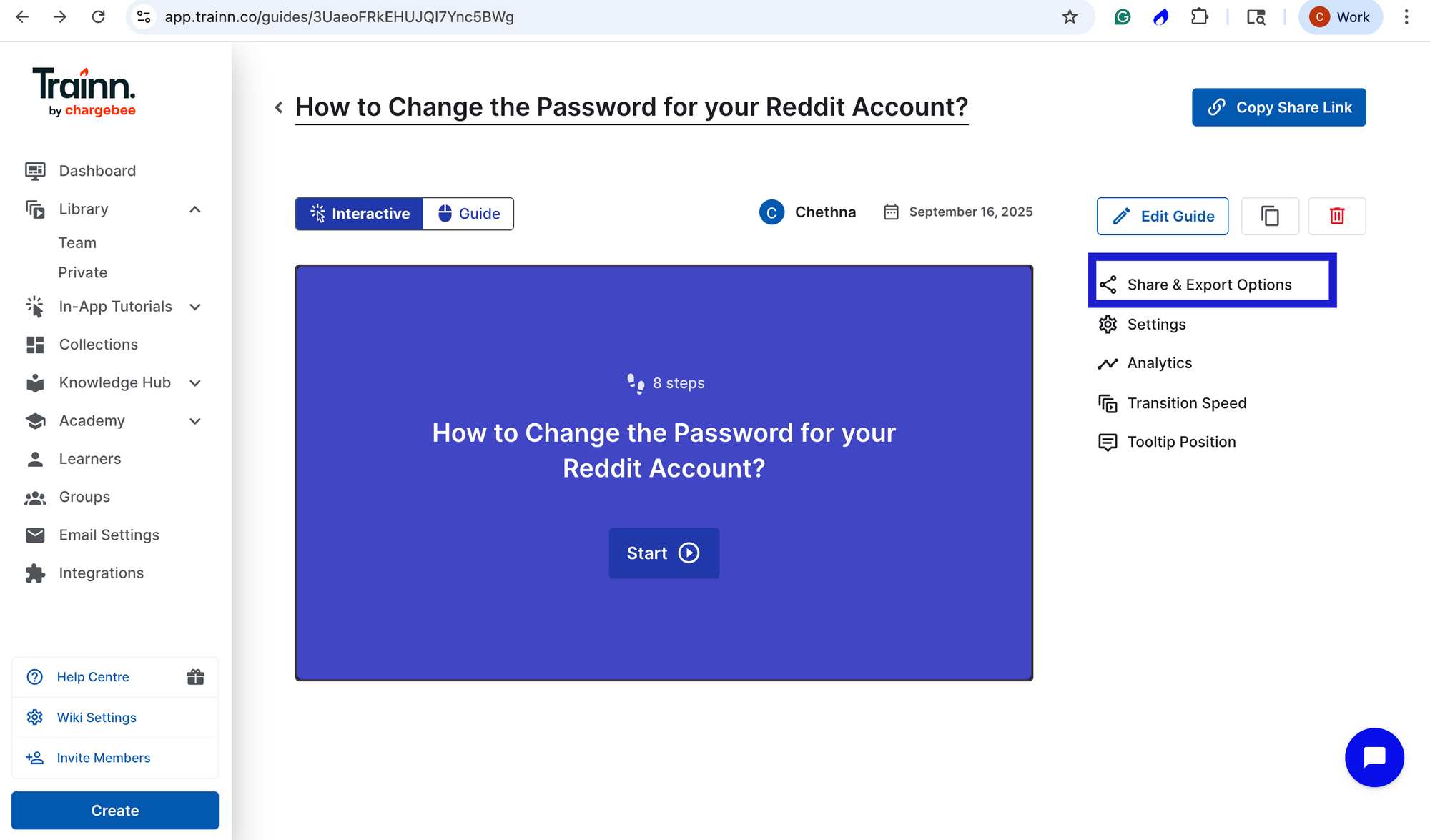
Step 9: Share, embed, export or publish directly in knowledge base or in-app tutorials
Now, you can share via link, export, or embed in your website. Or you can directly deliver through in-built Knowledge base or as In-app tutorials.
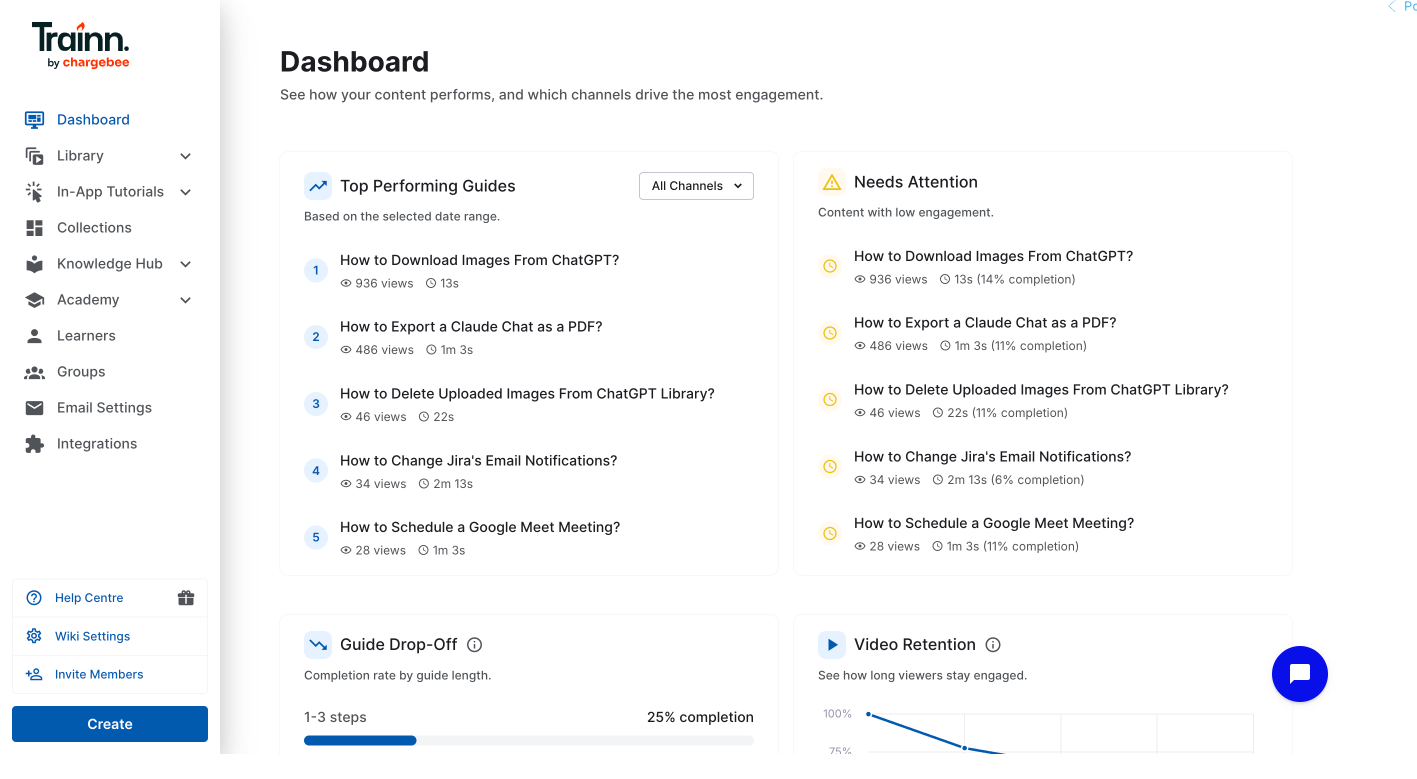
Step 8: Track and Iterate
Track individual step-by-step guide performance. You can analyze its views and engagement rate over a specified period.
Frequently Asked Questions
What is the best way to automatically create step-by-step guides from screen recordings? Use a tool with action-triggered capture — one that detects each click and captures a clean, full-resolution screenshot at that exact moment, rather than recording a continuous video and extracting frames afterward. Trainn's browser extension uses this method: record your workflow and Trainn generates a formatted, annotated step-by-step guide automatically — ready to review and publish within minutes.
How do I turn a screen recording into a step-by-step guide automatically? Install a guide creation tool with a browser extension, activate it, and walk through the product workflow you want to document. The tool detects each click, input, and page change as a discrete step — capturing a clean screenshot and writing a step description automatically. Stop recording and the guide is ready to review, with no manual screenshot-taking, annotation, or formatting required.
Can I convert an existing screen recording into a step-by-step guide? Yes — using video frame extraction, some tools can convert an existing screen recording into a guide by inferring step endpoints from the video. The trade-off is screenshot quality: video frames carry compression artefacts and often capture mid-action UI states rather than clean step endpoints. For customer-facing guides where accuracy matters, action-triggered capture produces better results.
Can I update an automatically generated guide without re-recording the whole thing? Yes — in Trainn, guides are built from discrete captured steps. When the product changes and one step looks different, you re-capture that step's screenshot and edit its description. The rest of the guide is unchanged. This is only possible because the guide is structured from individual action-triggered steps, not from a continuous video file that ties all steps together.
How long does it take to automatically create a step-by-step guide from a screen recording? Recording a standard 10–15 step product workflow takes 3–5 minutes. Guide generation — screenshot capture, step detection, and AI description writing — happens during or immediately after recording with no manual post-processing. Total time including review and editing is typically 10–20 minutes, compared to 2–4 hours for a manual screenshot-and-annotation workflow (ProcessReel, 2026).
Next Steps
The quality of an automatically generated step-by-step guide comes down to one decision made before the first recording: whether the tool captures screenshots at the moment of each action, or extracts them from a video afterward. Action-triggered capture produces guides that are accurate from the first take and maintainable step-by-step as the product changes. The recording takes the same five minutes either way.
For the delivery infrastructure that makes guides findable and measurable once they're created, see Trainn's knowledge base and in-app tutorials.
For more in this series: how to measure step-by-step guide performance and how often to update step-by-step guides.
Start your free 14-day Trainn trial →
Ready to Trainn your customers?
- Create videos & guides
- Setup Knowledge Base
- Launch an Academy

Trainn is an AI-powered product video and guide creation platform that turns screen recordings into product demo videos, training videos, onboarding videos, step-by-step guides, and interactive walkthroughs. Trainn also delivers this content externally through a branded no-code LMS, or in-app through embedded tutorials to train customers at scale.

North Bethesda, Maryland 20852


