
- Features
- Resources
- Pricing
- Try Trainn's AI Video Agent


Product
Usecases
Resources
Case Studies
Company
- Customers
- Pricing
- Try Trainn's AI Video Agent
- Expert voices
- Log in
- Book a demo
- Sign up →
Published on: 28 Aug , 2026
Customer Onboarding Video Templates: 5 Scripts and Why Each One Works
On this page
A template is a starting point, not a finished video. Here is the structure behind four that work, and what still has to happen after you fill them in.
A filled-in template is not a finished video.
A customer onboarding video template gives you the words. Fill in the brackets: [Customer Name], [Feature], [Your Name]. The blanks make it look like the hard part is done.
It is not. A filled-in script is still a page of text. Someone still has to record it, cut the dead air, and add a voiceover that does not sound like a hostage read. Someone still has to sync a zoom to the moment a button gets clicked. Most templates stop at the words and leave the production to you.
The four templates below include the words. They also include the reason each one is structured the way it is. You end up building a video with a job to do, not just filling in blanks.
Look past the fill-in-the-blank script
Onboarding video earns its place because it replaces a live explanation with something a customer can watch anytime, before a deadline, without booking a call. A CSM cannot sit on every call a new account needs. A three-minute video can run on all of them at once.
The problem is rarely the idea. Most teams agree a welcome video or a setup walkthrough would help. A product expert who has never scripted a video just does not know where to start. A blank page feels like homework, not a tool.
At Trainn, we’ve watched product and CS teams stall at exactly this step. They know the video would help, but the draft never gets written. A template does not solve the entire problem. It removes the blank page, which is usually enough to get someone recording something today instead of next quarter.
Build Videos Around the Moment, Not the Feature
A template is not just formatted text. It encodes three decisions before a single word gets filmed. Which moment in onboarding does this video cover? What one thing should the customer do or believe after watching it? How long does that take to earn?
Most feature-list videos try to cover everything a product does in one sitting. That approach explains the product. It does not move anyone through onboarding, because the customer is not trying to learn the whole thing. They are trying to finish the one step in front of them.
| Onboarding moment | Customer’s goal | Ideal length |
|---|---|---|
| Welcome and access | Confirm login works and know who to ask for help | Under 90 seconds |
| First login | Complete one real task without asking a question | 2 to 3 minutes |
| Feature adoption | Try a feature they have not used yet | Under 2 minutes |
| Renewal check-in | See the value earned before the renewal call | 2 to 3 minutes |
Each template below is built around one of these four moments. Pick the one your onboarding is stalling on right now, not the one that feels most impressive to publish first.
Use These Four Customer Onboarding Video Templates
Each template lists the goal, the ideal length, a beat-by-beat structure, and a sample script you can adapt line by line. Read the reasoning after each one before you change the structure.
Welcome and Account Access
Goal: Confirm the account works and name who to ask for help.
Length: Under 90 seconds.
- Greet the customer by name and confirm the account is ready.
- Show exactly where to log in and where support lives.
- Name one specific next step, not a menu of options.
- Close on a single call to action: complete that one step.
SAMPLE SCRIPT
Hi [Customer Name], welcome to [Product Name].
Your account is live. Log in at [Login URL] with the email you used to sign up.
If anything looks off, reach [Support Contact] anytime.
Your first step: [One Specific Action]. Start there.
Why it works: this template resists the urge to introduce every feature. A customer three minutes into a new tool needs one thing, not ten.
First Login Walkthrough
Goal: Get the customer to finish one real task, not sit through a tour.
Length: 2 to 3 minutes.
- State the one task the video completes, first.
- Walk that task from the customer’s starting screen, not an admin view.
- Call out the one setting most people miss.
- End on the completed result, so the customer recognizes success.
SAMPLE SCRIPT
In this video, you will [One Real Task], start to finish.
Start from your [Starting Screen], not the admin view.
One setting people miss: [Setting Name]. Set it here.
That’s it. [One Real Task] is done, and you can see it in [Result Location].
Why it works: a tour shows what exists. A walkthrough proves the customer can do the thing. Ending on the finished result gives them a mental picture of done, which a feature list cannot do.
Feature Adoption Nudge
Goal: Get an existing customer to try one feature they have not used.
Length: Under 2 minutes.
- Name the specific gap: what they do manually today.
- Show the feature closing that exact gap, not a general demo.
- Reference where they already are in the product, so the feature feels reachable.
- Close with the smallest possible first action.
SAMPLE SCRIPT
Right now, you are probably doing [Manual Task] by hand.
[Feature Name] does that for you. Here is how.
You already have this open in [Existing Screen], so it is one click away.
Try it on [Smallest Use Case] first.
Why it works: this template only works if it opens with something the customer is already doing. A feature nobody asked for gets skipped, no matter how well it is filmed.
Renewal and Expansion Check-in
Goal: Remind the customer what they got, before the renewal conversation.
Length: 2 to 3 minutes.
- Open with a number, not a greeting: what the customer accomplished since onboarding.
- Show one workflow that changed because of that result.
- Name the one feature they have not adopted yet.
- End with a direct, specific next step for the coming term.
SAMPLE SCRIPT
[Number] since you onboarded: [Result Achieved].
Here is [Workflow Name], the one that changed because of it.
One thing you have not tried yet: [Feature Name].
For [Coming Term], here is the one thing to do next: [Specific Next Step].
Why it works: numbers do the persuading here. A renewal video that opens with “hope you’re doing well” wastes the ten seconds a customer will watch.
Trainn's AI video and guide creation tool turns a single screen recording into a narrated video, a written guide, and an interactive walkthrough at once. It understands the recording as the workflow behind the script, not a sequence of frames to caption. One G2 reviewer using it cut a 9-hour production process to 2 hours per video.
Turn Any Script Into a Finished Video
A script only becomes a video once someone records against it. Three habits make that step faster, regardless of which tool does the editing.
- Record the screen first, narrate second. Reading a script cold while also clicking through a live product doubles the retake rate. Record the workflow silently, then layer narration once the visuals are locked.
- Cut the video the same week the script gets approved. A template that sits for a month gets outdated before it gets filmed, especially if the workflow changes in the meantime.
- Test the first cut on one real customer before publishing to everyone. A confusing zoom or a missed step shows up in the first watch, not the fiftieth.
Unlike a template file sitting in a shared drive, Trainn also lets you host, deliver, and track the videos you create. The script does not end up scattered across Vimeo, Google Drive, and email the way most onboarding libraries do.
Posist went from spending 7 days on a single onboarding video to shipping 7 videos in a day. The recording-to-publish step stopped requiring a dedicated editor.
Create the Video Inside Trainn
Pick a template above and run it through Trainn’s AI video and guide creation tool. Here is what that looks like end to end.
- Open the recorder and select your capture area. Read from the sample script above while you click through the workflow, or record silently and let Trainn write the narration from your actions.
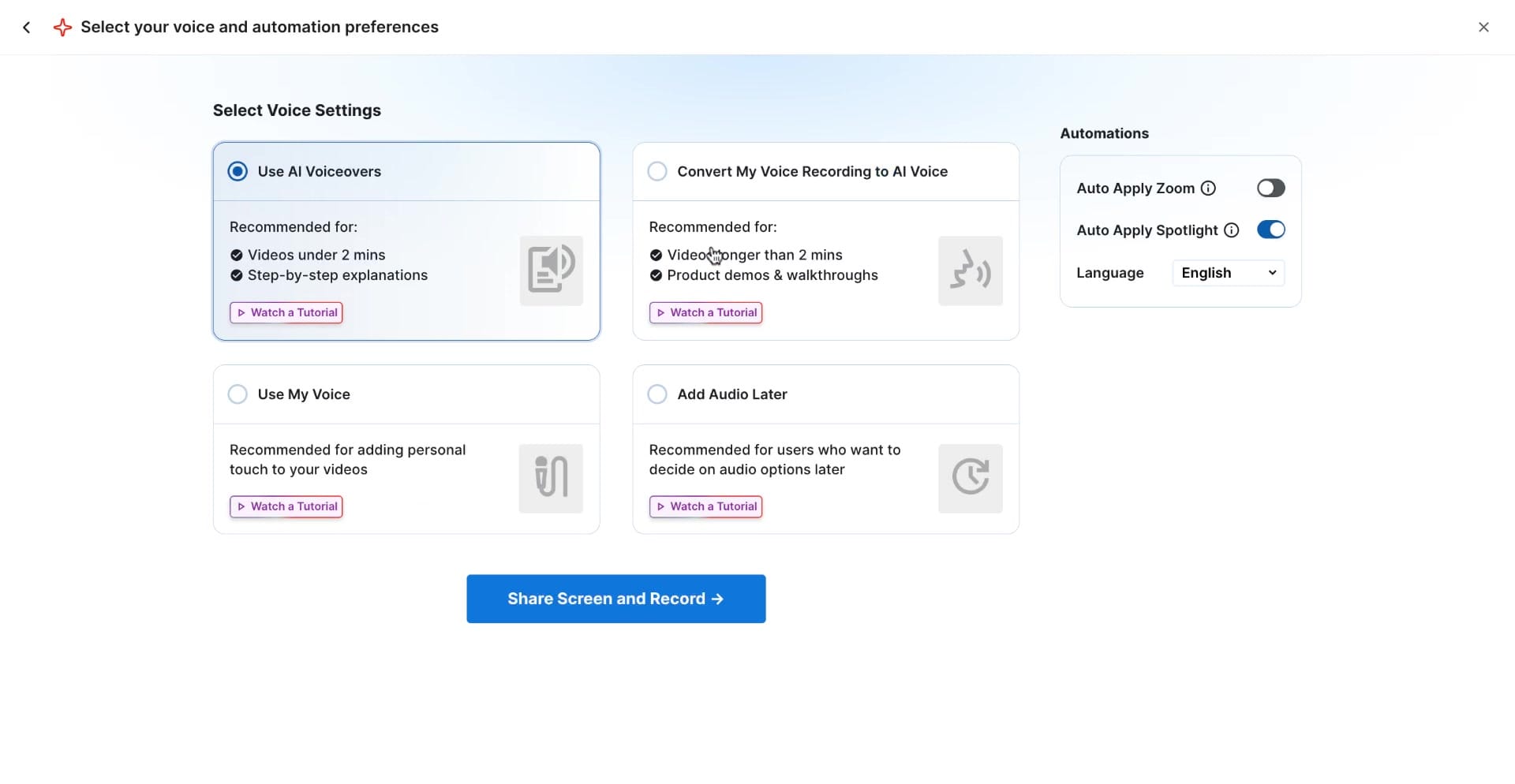
- Stop the recording. Trainn breaks it into clips automatically, one per screen interaction, and generates a first-draft script, voiceover, zooms, and spotlights from the workflow it just watched.
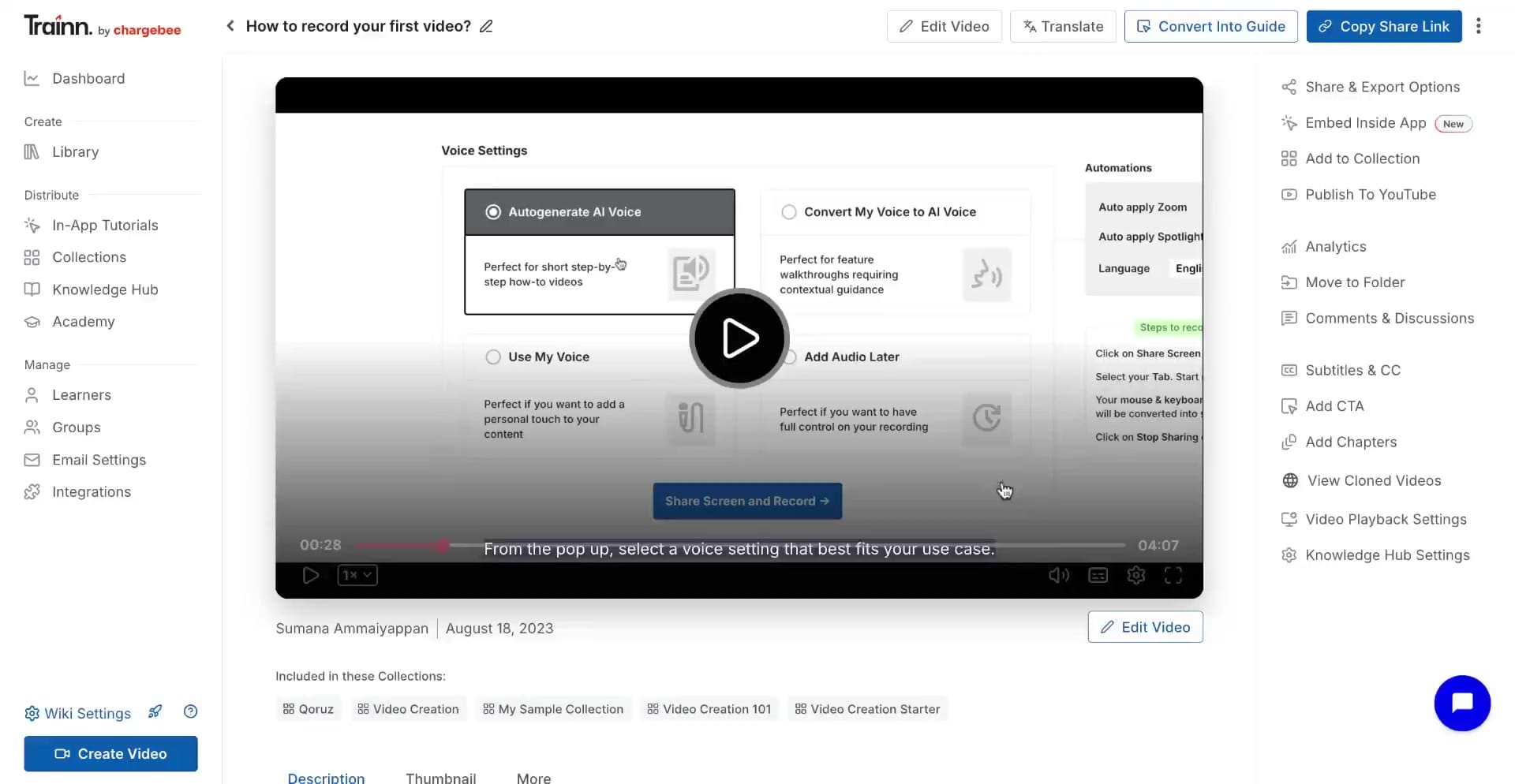
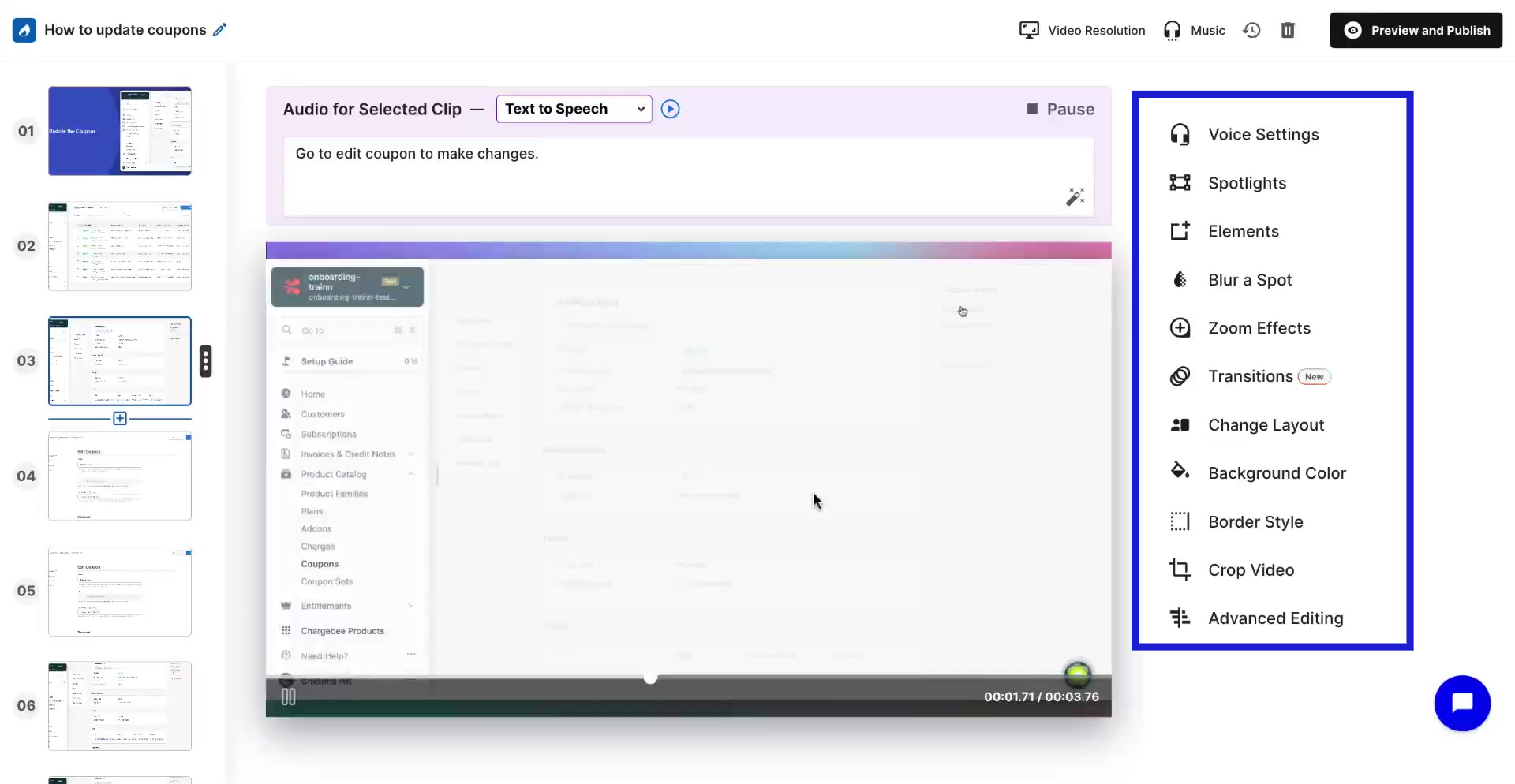
- Review the draft clip by clip. Swap a line of narration, adjust a zoom, or re-record a single clip without touching the rest of the video.
- Preview the finished video and check that it's ready to publish.
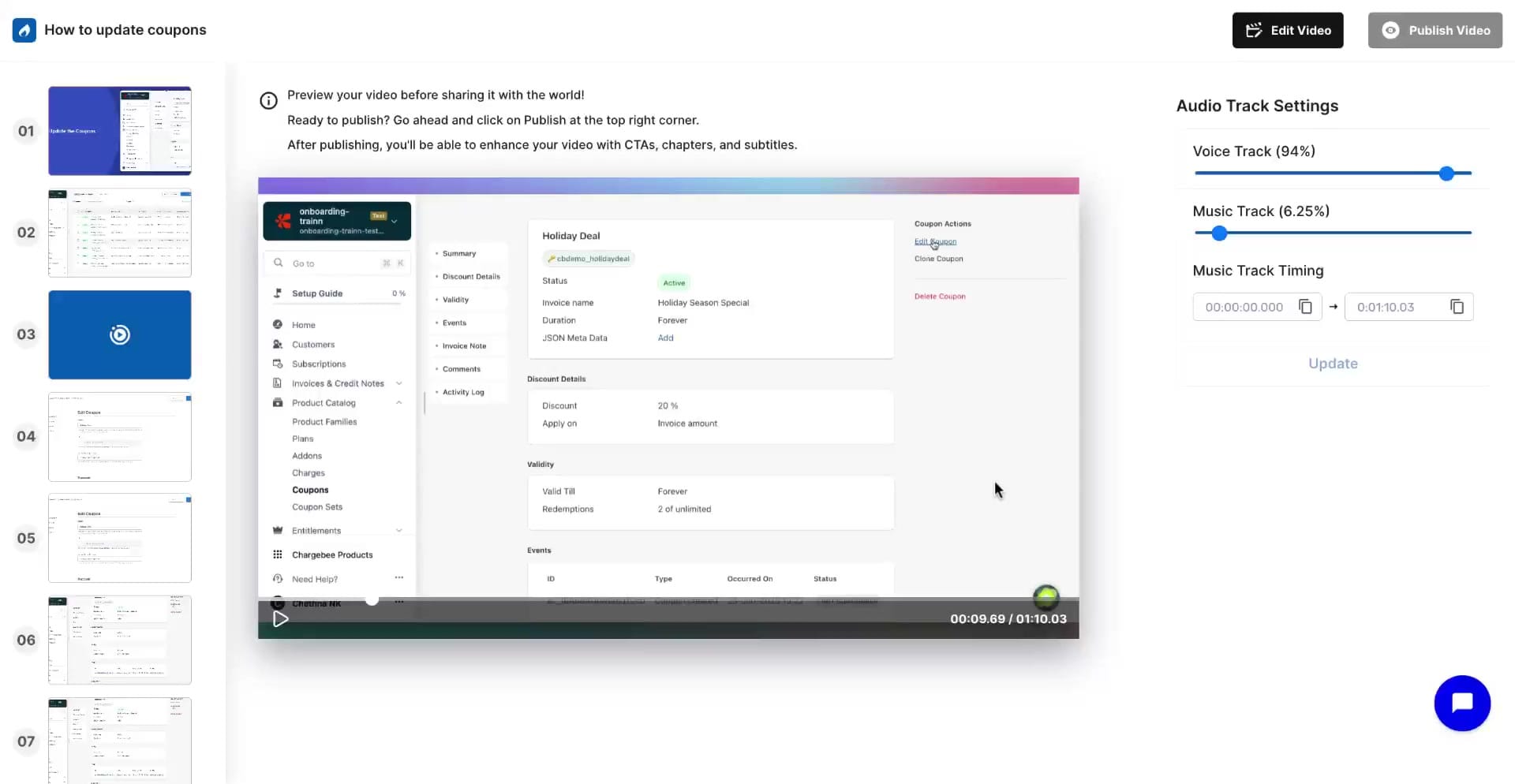
- Publish the video. It goes live and is ready to share. And updating any one of them later is a clip swap, not a re-record.
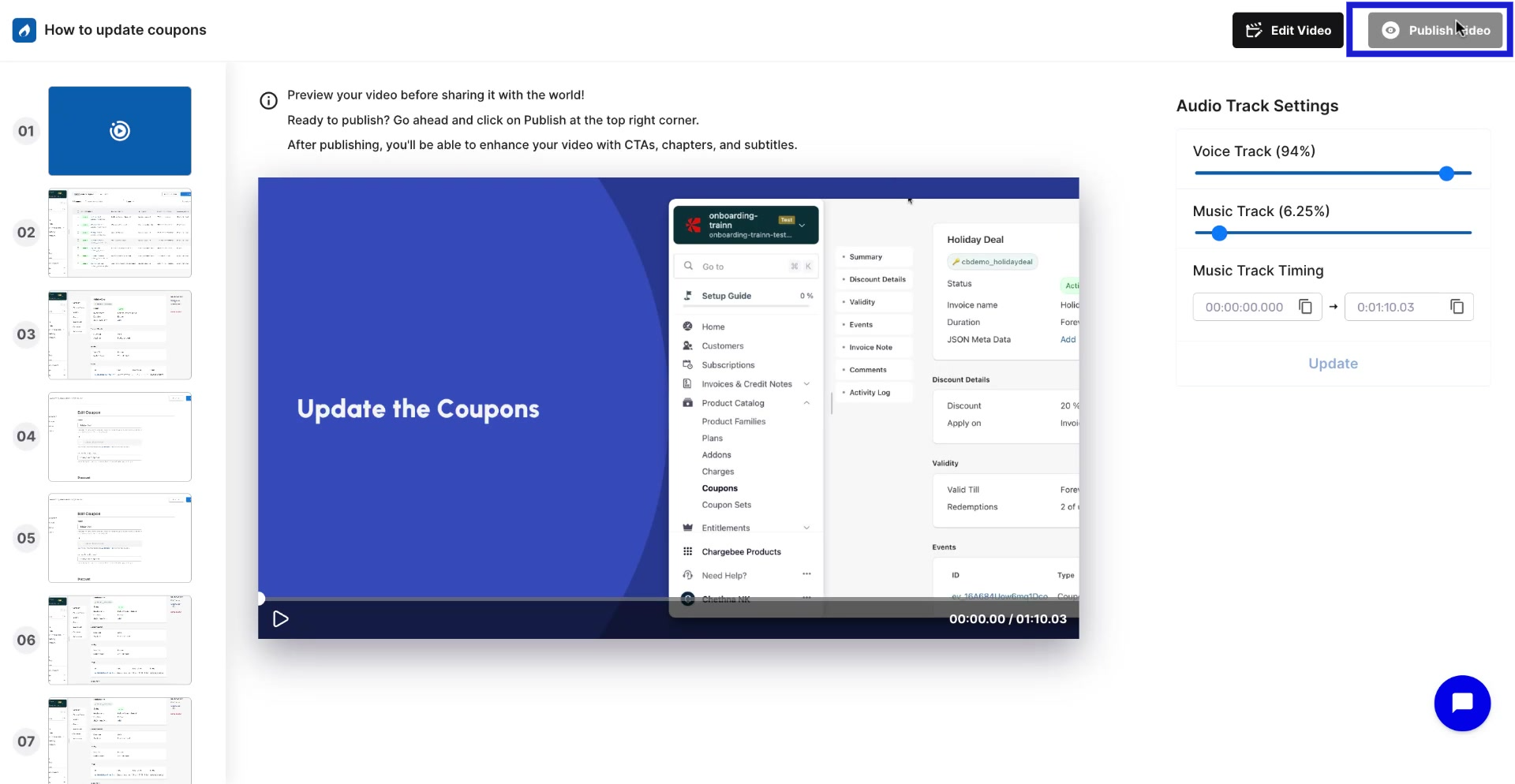
The templates above tell you what to say and why. This is the step that turns the words into something a customer watches.
Start With the Template Your Onboarding Needs Most
Four templates cover four different stalls in onboarding. An account nobody has logged into. A first task nobody finished. A feature nobody tried. A renewal nobody feels good about.
Pick the one matching your actual stall, not the one that looks best in a deck.
The words are the easy part of a customer onboarding video. Recording, editing, and voiceover are the rest, and a template cannot do that part for you.
See how Trainn turns a script like these into a finished video from one recording. Book a walkthrough.
Frequently Asked Questions
What should a customer onboarding video template include?
A working template names the moment in onboarding it covers. It states the one goal the customer should walk away with, and sets a length matched to that goal. Templates that fail usually try to cover multiple goals in one video instead of one moment at a time.
How long should a customer onboarding video be?
Welcome and feature-adoption videos should run under 2 minutes. Walkthrough and renewal videos that show a completed task typically run 2 to 3 minutes. Longer than that, completion rates drop before the video reaches its point.
Do onboarding video templates work for every SaaS product?
The four moments here, welcome, first login, feature adoption, and renewal, apply to most B2B SaaS onboarding. The specific task and feature named inside each template should always match the actual workflow being taught, not a generic placeholder.
What is the fastest way to turn a script into a finished video?
Record the screen workflow first without narration, then add voiceover once the visuals are locked. Tools that generate voiceover, zooms, and subtitles automatically from the recording remove the editing step that usually stalls a template from becoming a published video.
Related Reading
- What Is a Customer Onboarding Video
- Create Engaging Customer Onboarding Videos
- Customer Onboarding Software for SaaS
- The Power of Automated Onboarding
Sources
- Customer evidence (Posist, one G2 reviewer) from the Trainn Creation Messaging Brief proof-point library.
- Competitor landscape (Vidyard, Powtoon) reviewed via public template pages, August 2026.
Ready to Trainn your customers?
- Create videos & guides
- Setup Knowledge Base
- Launch an Academy

Trainn is an AI-powered product video and guide creation platform that turns screen recordings into product demo videos, training videos, onboarding videos, step-by-step guides, and interactive walkthroughs. Trainn also delivers this content externally through a branded no-code LMS, or in-app through embedded tutorials to train customers at scale.

North Bethesda, Maryland 20852


