
- Features
- Resources
- Pricing
- Try Trainn's AI Video Agent


Product
Usecases
Resources
Case Studies
Company
- Customers
- Pricing
- Try Trainn's AI Video Agent
- Expert voices
- Log in
- Book a demo
- Sign up →
Published on: 11 Jun , 2026
How to Turn a Loom Video into a Step-by-Step Guide
On this page
Recording a product walkthrough in Loom is fast. Turning that recording into a step-by-step guide for a help center, onboarding email, or internal wiki is a separate job that nobody scheduled time for.
The recording captures what was done. The guide is what customers can follow at their own pace, search for later, and return to when they get stuck on a specific step. These are different formats, and right now they require different workflows. This article covers three methods for turning a Loom video into a step-by-step guide, and introduces a workflow where the recording and the guide are produced in the same step.
Three Methods for Turning a Loom Video into a Step-by-Step Guide
Three conversion methods exist. The right one depends on your Loom plan, how much editing you want to do, and the quality of output you need.
| Method | What it requires | Output | Best for |
|---|---|---|---|
| Loom AI Workflows | Loom Business or Enterprise plan | AI-generated step text from transcript with video frame screenshots, formatted as a document | Teams on paid Loom plans who want a fast first draft from a clearly narrated recording |
| Manual extraction | Any Loom plan | Watch the recording, write each step, take screenshots from the video | Teams who want full control over step text and screenshot quality |
| Third-party tools | A Loom link or MP4 export | AI-processed structured documentation from the video's visual and audio channels | Converting a backlog of recordings into draft documentation |
What to Consider When Choosing a Method
The method that fits best depends on four practical factors.
Narration quality in the recording.
Loom AI Workflows generates step text from the audio transcript. If the recording was narrated step by step with deliberate language, the AI output will be close to usable. If the narration was conversational or jumped between topics, manual extraction or significant post-AI editing will be needed to produce a guide that actually works.
Screenshot precision required.
Video frames are extracted from a compressed video file and are sometimes caught mid-transition rather than at the clean endpoint of each action. For internal SOPs and draft documentation, this is usually acceptable. For customer-facing guides published in a help center, cleaner screenshots reduce confusion at every step.
How often the guide will need updating.
A guide built from a converted Loom recording is tied to that recording. When the product changes, the affected steps need to be edited manually in the document, or the recording needs to be redone and reconverted. Teams with frequent product releases benefit from a workflow that allows updating a single step without touching the rest of the guide.
Whether the guide needs to be in multiple languages.
Loom AI Workflows produces English-only output. Teams with non-English customer bases need either a separate translation workflow after conversion, or a recording tool that supports one-click translation of the finished guide.
How to Turn a Loom Video into a Step-by-Step Guide in Trainn
The reason recording and documentation end up as two separate jobs is that most screen recording tools produce a video, not a guide. Trainn produces both formats from the same source. If you already have a Loom recording, you can upload it to Trainn and convert it directly into a formatted, annotated step-by-step guide — without re-recording, without manual screenshot extraction, and without writing step descriptions from scratch.
The CS lead who asks for a help center guide gets it on the same day the Loom recording lands in their inbox.
Step 1: Upload the Loom Video
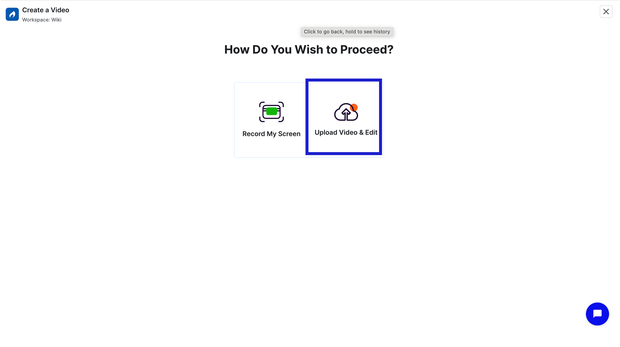
In the Trainn dashboard, click Create and select Create Video. Choose the upload option and select the Loom video file.
Step 2: Generate Clips using AI for easy editing
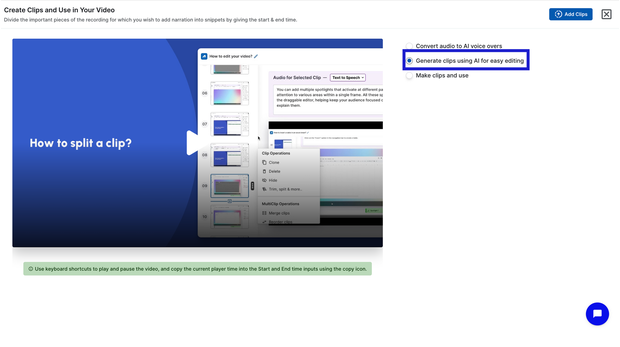
Once uploaded, select the "Generate clips using AI for easy editing" option. Trainn analyzes the video and breaks it into individual clips based on the narration.
Step 3: Review and Edit wherever required
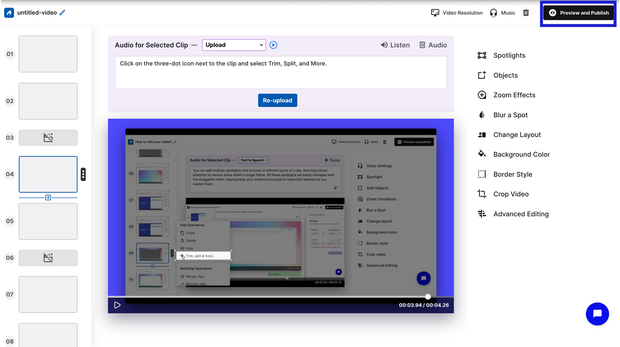
Edit the zooms, spotlights, script and proceed to publish the video
Step 4: Convert the video into Step-by-step guide
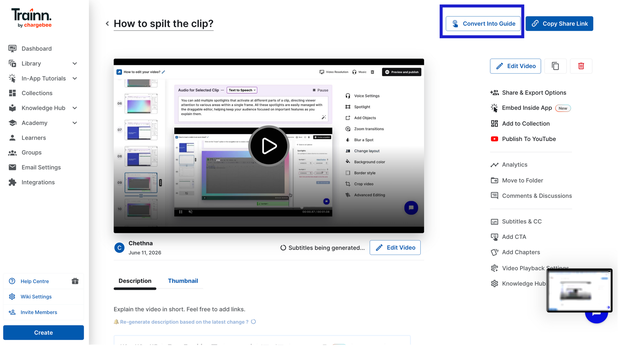
Click Convert into Guide. Trainn generates a step-by-step guide directly from the video. Each clip becomes a step, with a screenshot and an AI-generated description. The guide is assembled automatically: numbered, annotated, and formatted.
Step 5: Review, and edit.
Review each step. Editing happens at the individual step level. Swap any screenshot that needs updating, adjust zooms or spotlights, edit description, blur any sensitive data, and reorder steps if needed.
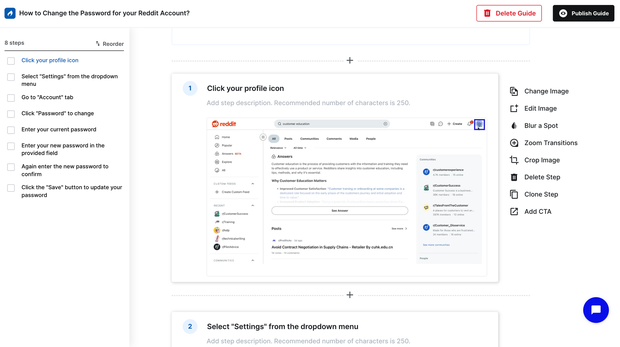
Step 6: Publish the guide
Once done, proceed to publish the guide.
Frequently Asked Questions
How do you turn a Loom video into a step-by-step guide?
Three methods exist: Loom AI Workflows (available on Business and Enterprise plans) generates step text from the recording's transcript and embeds video frame screenshots automatically; manual extraction means watching the recording and writing each step yourself; third-party tools accept a Loom link or MP4 export and produce structured documentation using AI. The right method depends on your Loom plan and how much editing you want to do.
Does Loom have a built-in step-by-step guide feature?
Yes. Loom AI Workflows, available on Business and Enterprise plans, generates step-by-step guide documents from a recording's AI transcript. Open any recording, go to the AI or Workflows panel, select the "Step-by-step guide" template, and Loom produces a formatted document with embedded video frame screenshots. Output quality depends on how clearly the original recording was narrated.
How do I convert a Loom recording to a document?
Open the Loom recording, go to the AI or Workflows panel, and select the "Step-by-step guide" template. Loom AI generates a structured text document from the recording's transcript with screenshots embedded. Review and edit the output, then export to Notion, Confluence, Google Docs, or share the Loom document link directly.
What is the fastest way to create a step-by-step guide from a screen recording?
Using a purpose-built guide creation tool that generates the guide automatically as you record is faster than converting an existing video after the fact. Trainn records the workflow, captures a clean screenshot at each action, and writes step descriptions from screen action detection. The guide is ready to review as soon as you stop recording, with no conversion step required.
How do you create a step-by-step guide from a screen recording without narration?
Use a guide creation tool that generates step descriptions from screen action detection rather than from audio transcript. Trainn's browser extension detects each click, dropdown selection, and page change as a discrete step and writes a description based on what happened on screen. No narration is needed because the step text comes from the screen events, not from what was said during the recording.
Next Steps
The three methods get you from a Loom recording to a step-by-step guide. The right one depends on your Loom plan, the quality of the narration, and how much editing time you have. For teams doing this regularly, the more sustainable path is a workflow where the recording and the guide are created in the same session, not two separate jobs that pile up every time the product changes.
For the delivery infrastructure that makes guides searchable, current, and accessible at every customer touchpoint, see Trainn's knowledge base and in-app tutorials.
For more in this series: how to automatically create step-by-step guides from screen recordings and how to keep step-by-step guides consistent across a large team.
Start your free 14-day Trainn trial →
Ready to Trainn your customers?
- Create videos & guides
- Setup Knowledge Base
- Launch an Academy

Trainn is an AI-powered product video and guide creation platform that turns screen recordings into product demo videos, training videos, onboarding videos, step-by-step guides, and interactive walkthroughs. Trainn also delivers this content externally through a branded no-code LMS, or in-app through embedded tutorials to train customers at scale.

North Bethesda, Maryland 20852


