
Product
Usecases
Resources
Case Studies
Company
- Customers
- Pricing
- Try Trainn's AI Video Agent
- Expert voices
- Book a demo
- Sign up →
How to Curve a Text in Canva?
Created with Trainn AI
Here's a step-by-step walkthrough on how to curve a text in Canva
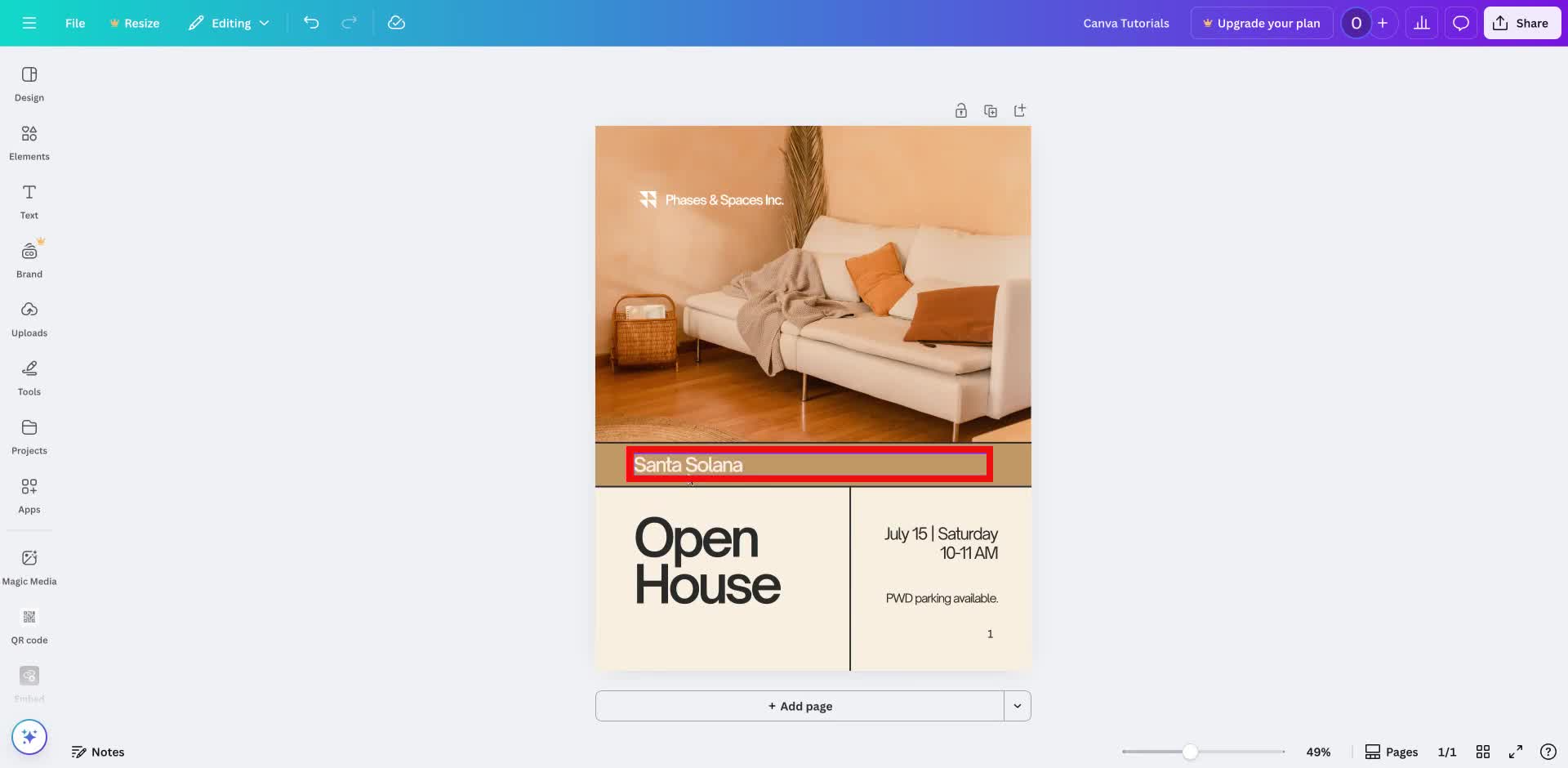
1. In the your Canva design, click on the text you want to curve.
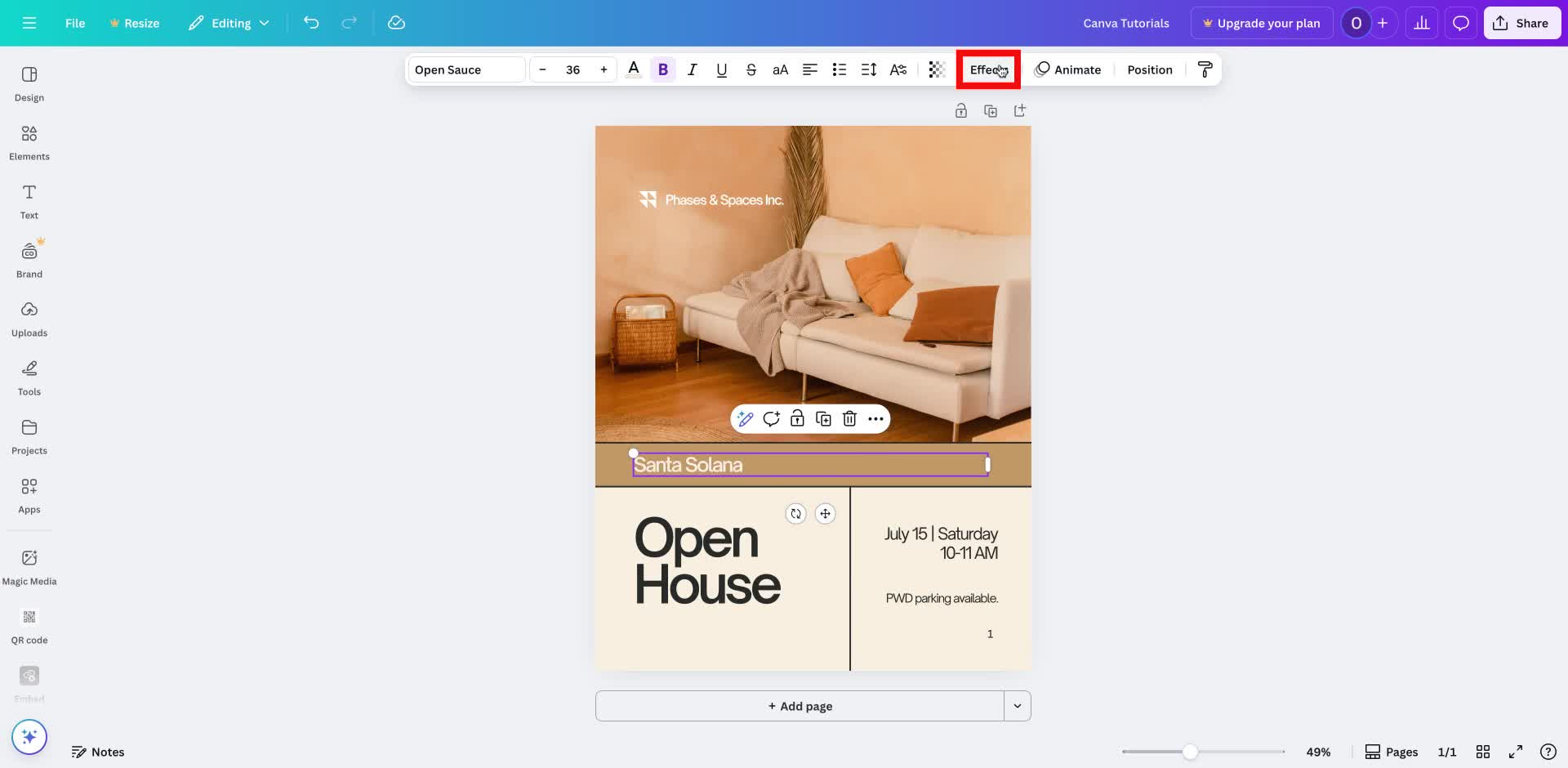
2. Click on the "Effects" button in the text toolbar above.
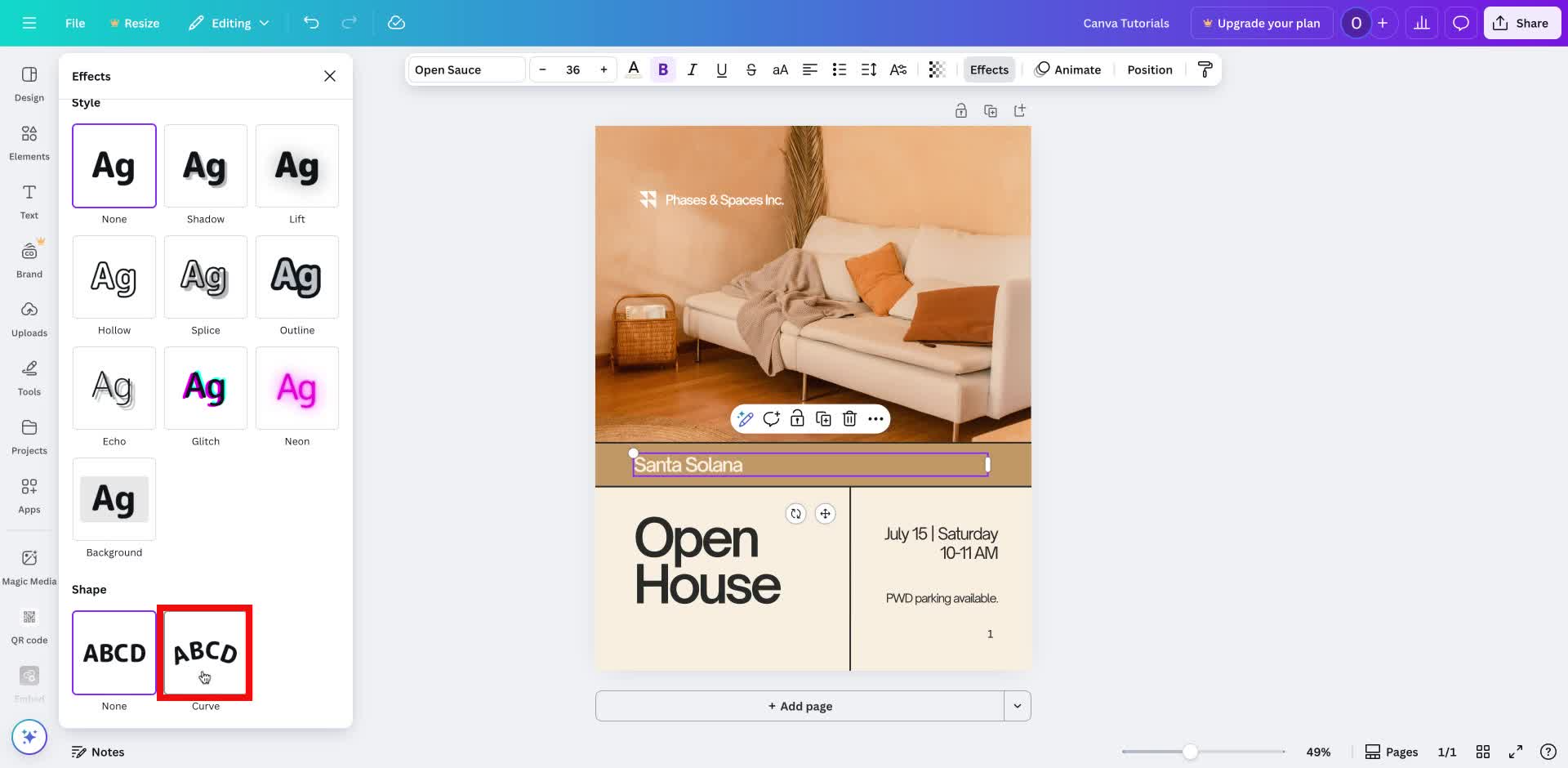
3. In the "Effects" panel, select the "Curve" option under "Shape".
4. Adjust the curve slider to modify the text curvature.
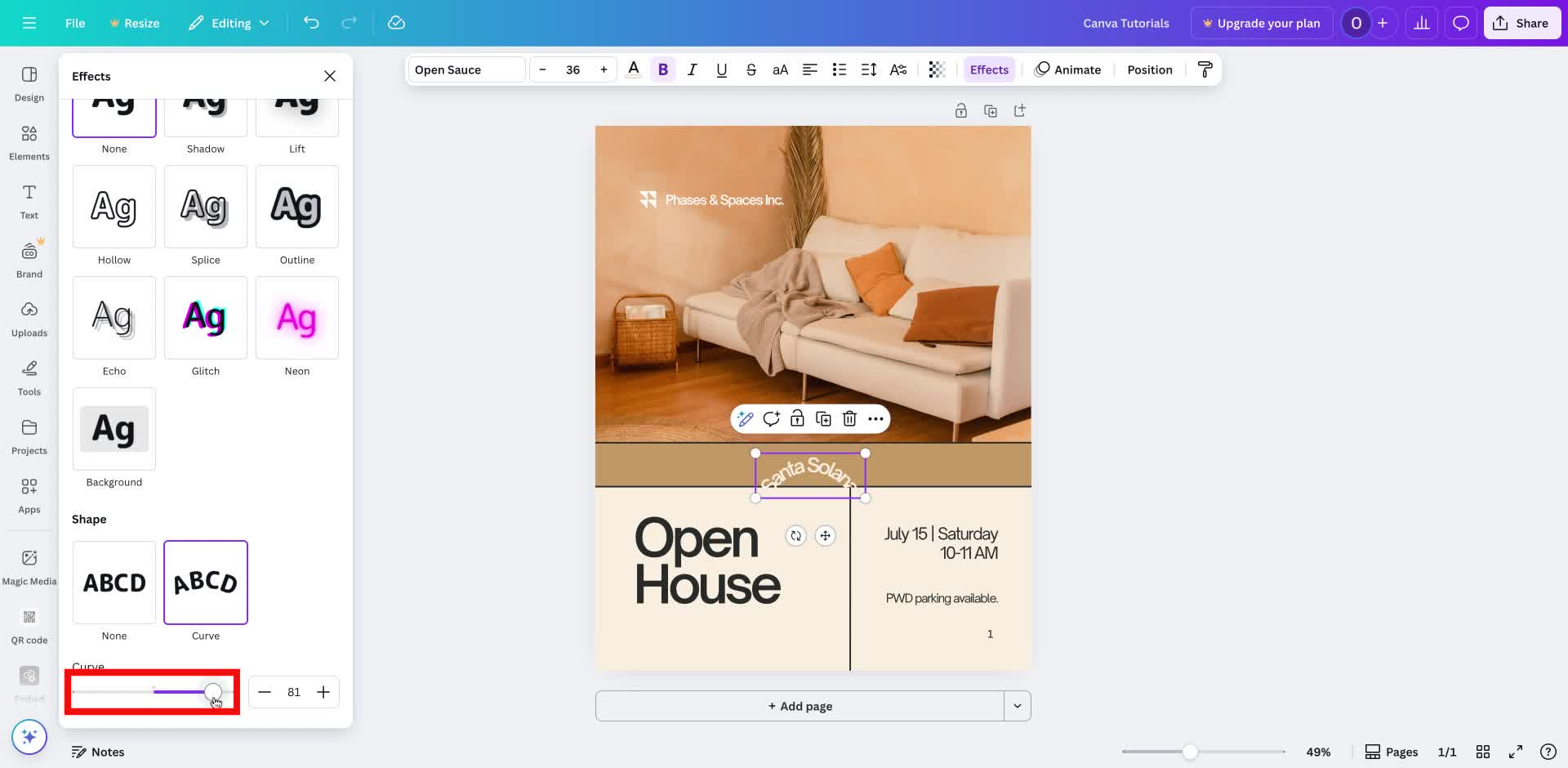
5. Observe the curved text effect applied to to your text.

And that's it! You have curved a text in Canva!
Trainn is an AI-powered product video and guide creation platform that turns screen recordings into product demo videos, training videos, onboarding videos, step-by-step guides, and interactive walkthroughs. Trainn also delivers this content externally through a branded no-code LMS, or in-app through embedded tutorials to train customers at scale.

North Bethesda, Maryland 20852


